
How to bring a chat into Vermilleon
The quickest way depends on where the conversation is. WhatsApp has a real export that takes about thirty seconds. For iMessage and most other apps, screenshots are the fastest route in the Vermilleon iPhone app, which reads them on your phone. A few weeks of messages is plenty for a clear read.
The steps below are for the Vermilleon iPhone app.
Only bring in conversations you have the right to share, with the consent of the other people in them. See Consent & Ethics.
WhatsApp — about 30 seconds
- Open the chat with the person.
- Tap their name at the top.
- Scroll down and tap Export chat.
- Choose Without Media. Photos and videos aren't needed, and leaving them out makes the export much smaller.
- In the share sheet, choose Vermilleon (the iPhone app). If you don't see it, tap More, or choose Save to Files and pick the file from Vermilleon → A file you already have.
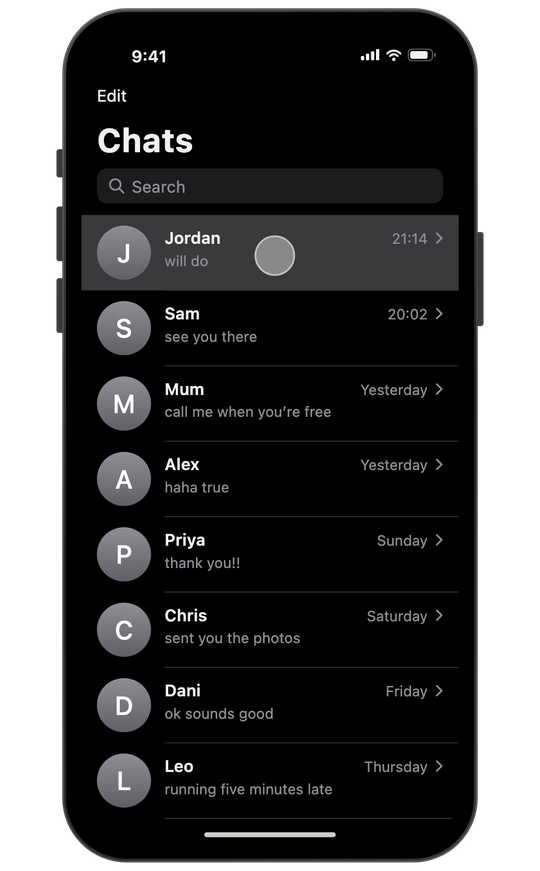
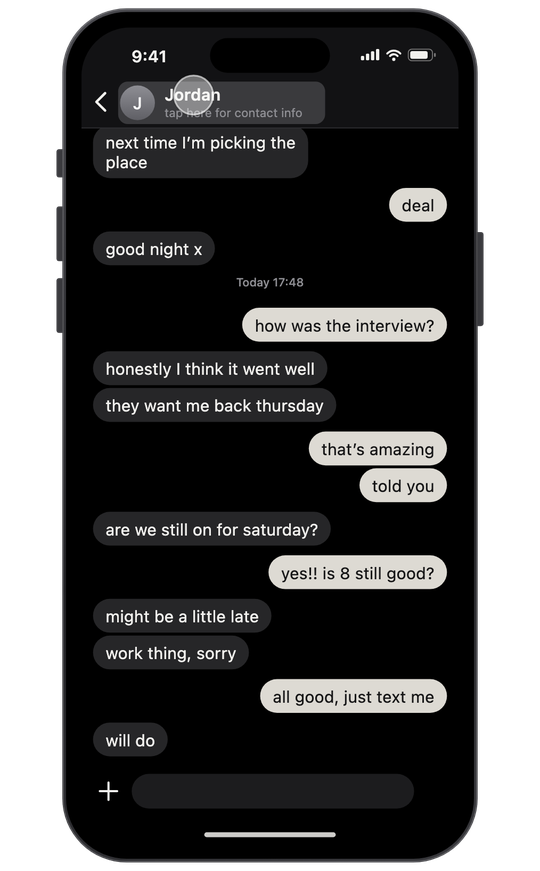
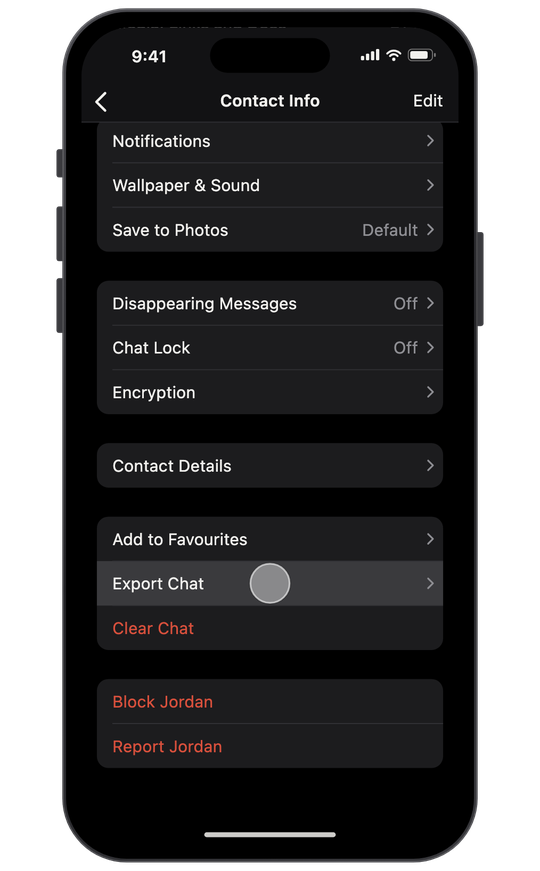
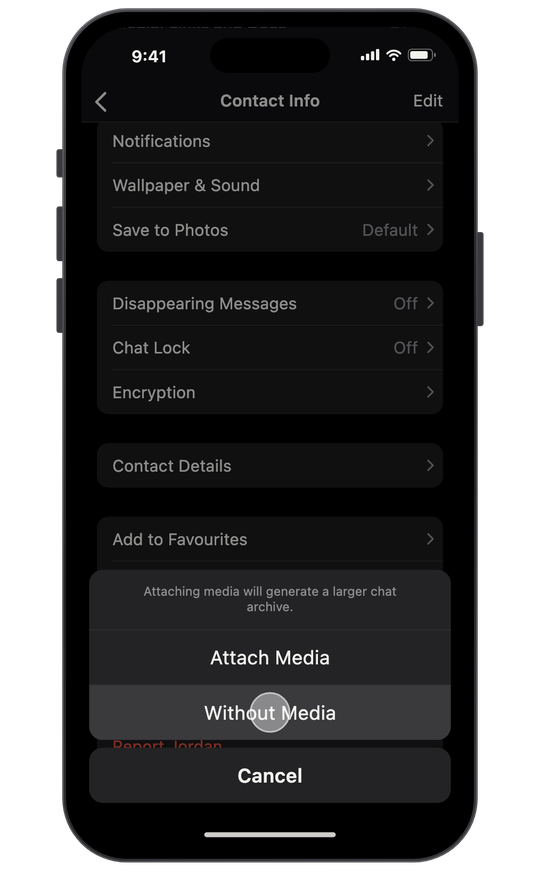
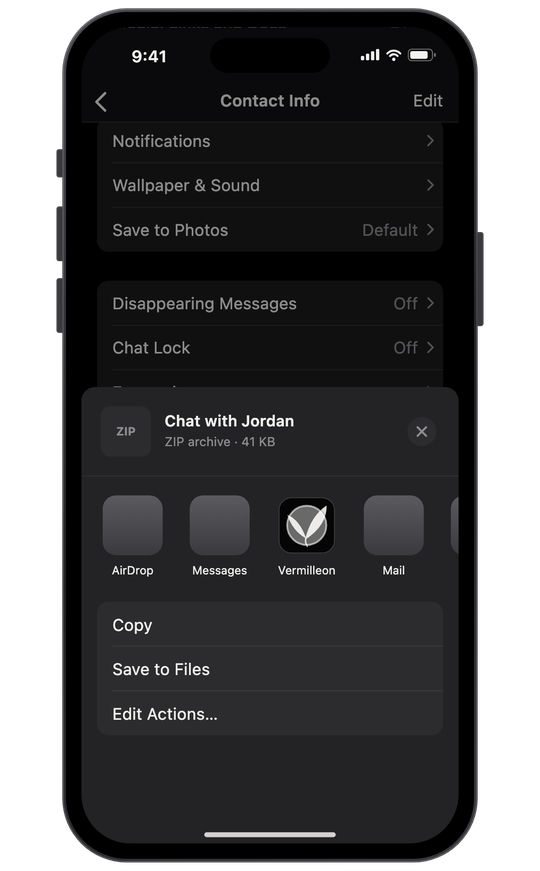
WhatsApp exports a .zip. The Vermilleon iPhone app only reads the chat text inside it (_chat.txt); any media in the zip stays on your phone.
On Android: open the chat → ⋮ → More → Export chat → Without media. You'll get a .txt file.
If Export chat is missing: either of you may have turned on WhatsApp's Advanced Chat Privacy, which blocks exporting. If the other person turned it on, take that as a sign they may not want the chat shared, and don't bring it in another way, such as screenshots, unless they have told you they agree.
iMessage — screenshots in the iPhone app, about a minute
The Messages app has no export, so the Vermilleon iPhone app reads screenshots instead.
- Open the conversation and scroll to where it starts to matter.
- Take a screenshot: press the side button and volume up together.
- Scroll up so the next screen overlaps the last one a little, and take another. Repeat.
- In the Vermilleon app, choose iMessage, then Choose screenshots, and select them in order.
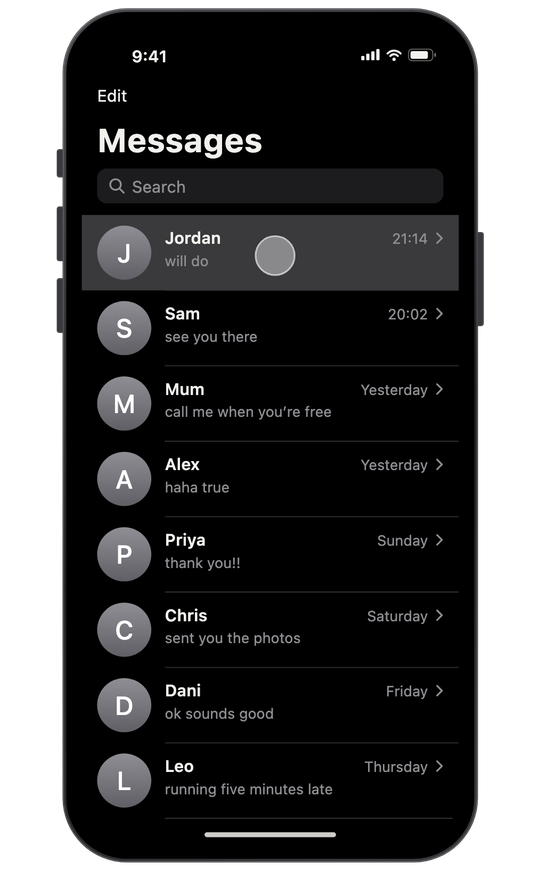
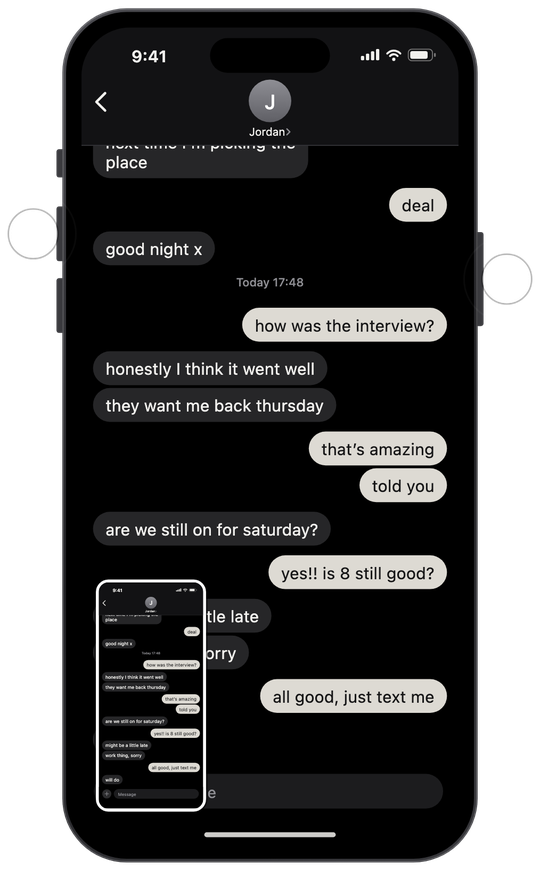
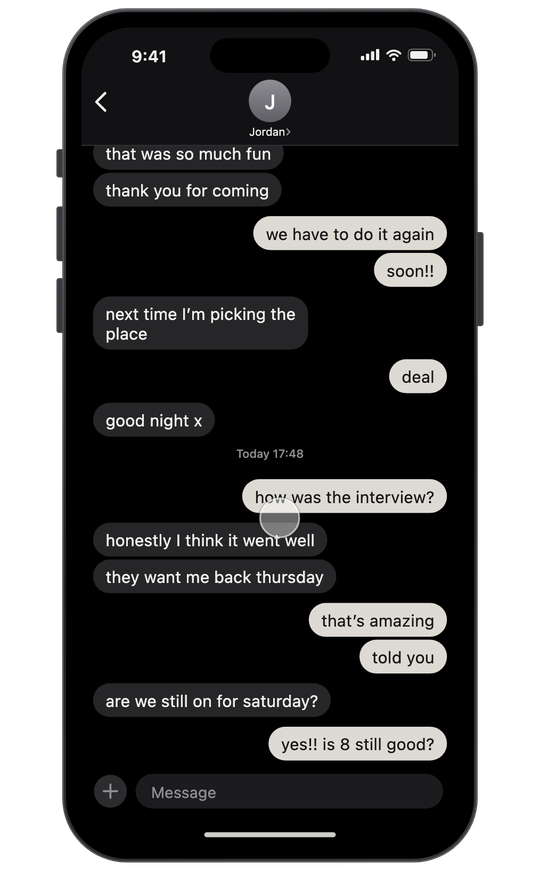
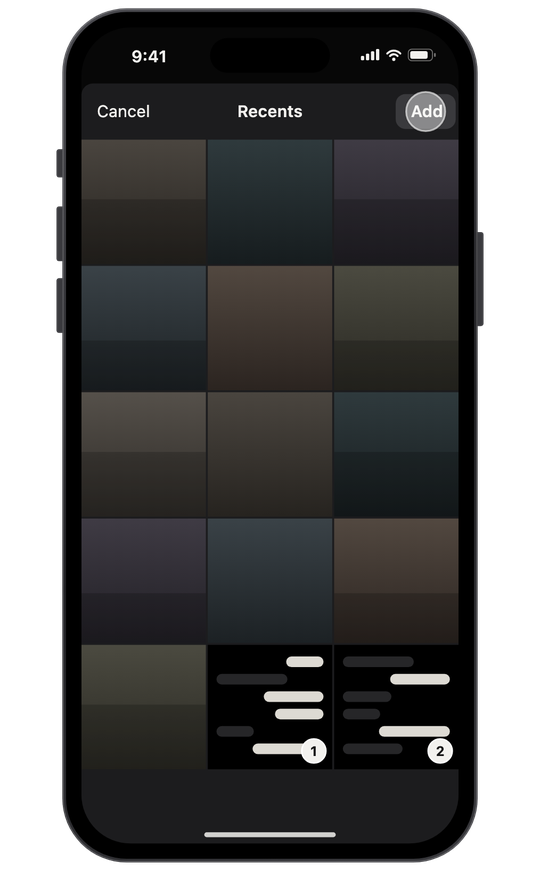
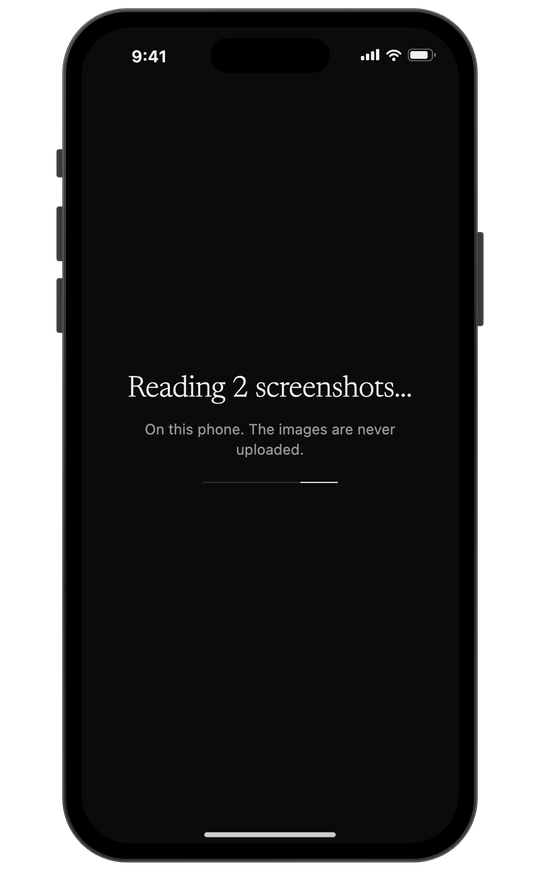
In the iPhone app, the text is read on your phone with Apple's built-in text recognition. Only the words are sent for your read; the screenshots never leave your device. Before anything is sent you can check who said what, and tap a message to move it to the other side if it was misread.
You can also paste: touch and hold a message → Copy, then choose Paste text in Vermilleon. Put the name before each message ("Jordan: running late") so we know who said what.
Instagram — official export, takes hours
- Profile → Menu → Accounts Center (or Meta Account) → Your information and permissions → Export your information → Create export.
- Choose Export to device, then select only Messages.
- Set Date range to All time (the default is one year) and Format to JSON.
- Tap Start export. Meta emails you when it's ready — anywhere from minutes to a couple of days.
- Download the
.zipand choose it in the Vermilleon app → A file you already have. Vermilleon finds the conversation inside.
If you don't want to wait, screenshots of the DM thread work right away in the iPhone app.
Telegram — screenshots on iPhone
Telegram's export only exists in Telegram Desktop on a computer: open the chat → ⋯ → Export chat history → JSON. The export folder contains result.json, which the Vermilleon app can read.
On iPhone, use screenshots in the Vermilleon app.
Snapchat, Messenger, Discord, Signal — screenshots
None of these apps has a usable export on iPhone (Snapchat only includes saved chats, Discord only your own messages, Signal none at all), so screenshots in the Vermilleon iPhone app are the way in.
Anything else
- A text, JSON or CSV file from another tool: in the Vermilleon app → A file you already have.
- Copied text from anywhere: Paste text, in the app.
Questions? Email [email protected].